
Think a strong password is enough? Think again.
Two-factor authentication (2FA) is the extra check banks use to protect your online accounts.
You enter a password, then you must prove you also have something — a phone code, an app approval, or a fingerprint.
That second step stops most thieves even when passwords leak.
In this post I’ll show how 2FA works in real banking, compare SMS, authenticator apps, push and biometrics, and explain which choice makes the most sense for different users.
Clear Definition of Two‑Factor Authentication for Online Banking
Two‑factor authentication for online banking requires two separate pieces of proof before you can get into your account. First comes something you know: your username and password. Second is something you have or something you are. That might be a one‑time code texted to your phone, an approval inside your banking app, or a fingerprint scan. Banks add this extra step because stealing a password isn’t enough anymore. Without the second factor, an attacker can’t log in.
Most banks ask for 2FA when you log in from a new device, reset your password, add a payee, or move large amounts of money. One‑time codes are usually six digits and they don’t last long. Authenticator apps expire codes every 30 to 60 seconds. Text messages give you a few minutes at most. The short window means the code can’t be reused or stolen after you’ve already moved on.
The login process breaks down into four steps:
- You enter your username and password.
- The bank checks your password and asks for a second factor.
- You get or generate a one‑time code through text, an app, a push alert, or a hardware token.
- You enter or approve the code to finish logging in.
This two‑step check stops unauthorized access even when someone knows your password. Without your phone or biometric device, they’re stuck.
Core Authentication Factors Used in Online Banking 2FA
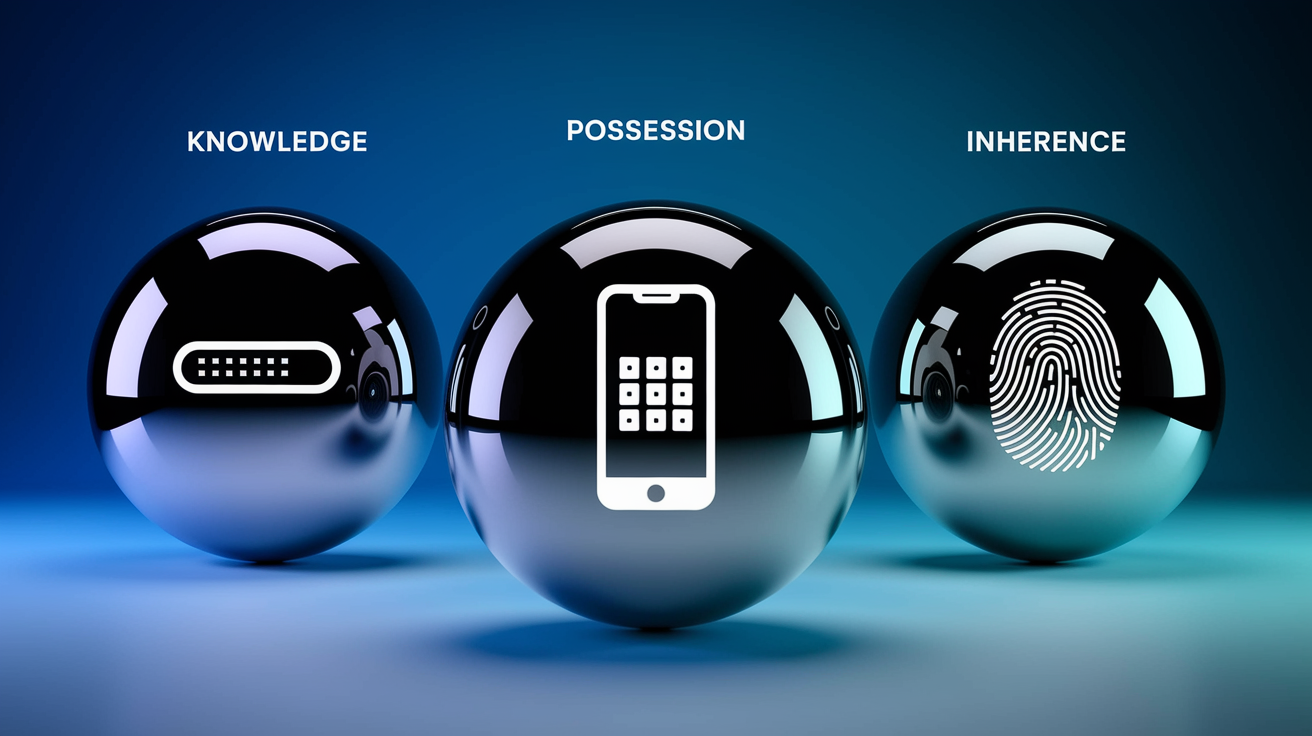
Online banking 2FA pulls from three buckets. The first is something you know: a password, PIN, or security question answer. The second is something you have: a physical device or piece of software that generates or receives a unique code. The third is something you are: a fingerprint, face scan, or other biometric marker. Banks mix at least two of these buckets to verify who you are and cut down on fraud.
Most banking systems pair a knowledge factor (password) with a possession factor (one‑time code) or an inherence factor (biometric). That’s what multi‑factor authentication for online banking actually means. Each factor comes from a different category, so stealing one piece of information doesn’t get you in.
Real banking scenarios use these factors like this:
Knowledge: Password or PIN you set when you opened the account.
Possession (SMS): Six‑digit code sent to your registered mobile number.
Possession (Authenticator app): Time‑based one‑time password that rotates every 30 seconds, like from Google Authenticator or Authy.
Possession (Hardware token): Physical device that displays or generates a code, like a YubiKey or RSA token.
Possession (Push notification): Banking app notification that asks you to approve or deny a login attempt.
Inherence (Biometric): Fingerprint scan or facial recognition on your smartphone to confirm you’re holding the device.
Biometric authentication in banking often works as the second factor on mobile devices. After you enter your password, the app prompts for your fingerprint or face to finish the login. Fingerprint authentication and facial recognition for mobile banking are fast and convenient, and they tie access directly to your physical presence.
How Two‑Factor Authentication Works in Real Online Banking Scenarios
After you enter your username and password, the bank’s server checks those credentials and immediately sends or requests a second factor. If you’ve got SMS verification turned on, a text message arrives with a six‑digit code. If you use an authenticator app, the app generates a new code every 30 to 60 seconds based on a shared secret key and the current time. If you enrolled in push notifications, your banking app shows an alert asking you to approve or deny the login. Hardware tokens generate codes on demand or display a rotating number. You provide this second proof, and the bank grants access only when both factors match.
Banks trigger 2FA at key moments. Logging in from an unfamiliar device, changing account settings, adding a new payee, authorizing wire transfers, or resetting your password. High‑risk transactions are common triggers because they carry the greatest potential for fraud. The one‑time code is designed to be single‑use and short‑lived, so even if someone intercepts it, the window to misuse it is narrow. Authenticator apps and push notifications offer tighter timing, with codes expiring in as little as 30 seconds, compared to SMS codes that may remain valid for a few minutes.
Real‑world examples show the difference between methods. When you log in from your usual laptop at home, the bank may skip the second factor or remember the device for a set period. When you try to access your account from a coffee shop on a new phone, the system immediately asks for a one‑time code or push approval. If you attempt to wire money to a payee you’ve never used before, the bank sends an SMS code or prompts your app for approval before releasing the funds.
Typical 2FA Login Flow
You start by opening the bank’s website or mobile app and entering your username and password. The system validates that password against its database. Once confirmed, the server triggers a second‑factor request tailored to your enrollment settings. If you selected SMS, a text arrives within seconds. If you use an authenticator app, you open the app to retrieve the current time‑based code. If push is enabled, your phone buzzes with an approval screen. You enter the code or tap “Approve,” and the server compares your response against the expected value. When they match, the session opens and you see your account dashboard.
Different methods vary in speed, security, and convenience:
SMS codes arrive quickly but they’re vulnerable to interception and SIM‑swap fraud.
Authenticator app codes (TOTP) rotate every 30 to 60 seconds and don’t rely on your carrier, reducing interception risk.
Push notifications allow instant approval with a single tap and often pair with biometric checks for added security.
Hardware tokens generate codes offline, making them resistant to phishing and network attacks.
Biometric factors are fast and hard to replicate but depend on device hardware and quality of enrollment.
Security Benefits of Two‑Factor Authentication for Banking Customers
Two‑factor authentication blocks attackers who’ve only stolen your password. Without the second factor (your phone, app, or fingerprint) they can’t log in. This single barrier has measurable impact. Studies show that enabling 2FA reduces successful account intrusions by around 99 percent. Even if your password appears in a data breach or falls victim to a phishing email, the account stays protected as long as the attacker can’t access your second factor.
Beyond blocking unauthorized logins, 2FA provides early alerts. When someone tries to log in and triggers a code request, you get a text or push notification. If you didn’t start the login, that alert tells you someone else has your password. You can immediately change your credentials and review recent activity. This detection benefit turns 2FA into both a lock and an alarm.
Banks also use 2FA to protect high‑value actions. Transferring money, adding external accounts, or changing contact information all trigger a second‑factor check. This layered approach means that even if an attacker gets past the login screen, they hit another barrier before causing financial damage.
Key fraud‑prevention and alerting benefits:
Stops access when password alone is compromised.
Alerts you to unauthorized login attempts in real time.
Protects high‑risk transactions and account changes with an additional verification step.
Reduces the success rate of credential‑stuffing and brute‑force attacks.
Common 2FA Methods Used in Banking and Their Differences

Banks offer multiple second‑factor options, each with trade‑offs in security, convenience, and cost. SMS one‑time codes are the most widely deployed method because nearly every customer has a mobile phone and text messaging. Authenticator apps like Google Authenticator or Microsoft Authenticator generate time‑based one‑time passwords (TOTP) that rotate every 30 to 60 seconds without relying on the cellular network. Hardware security keys, including YubiKey and other FIDO2‑compliant devices, provide phishing‑resistant verification by requiring physical interaction. Push notifications deliver instant approval prompts to your banking app, often paired with biometric checks. Biometric factors (fingerprint or face scan) offer fast, device‑level verification but depend on the quality of your phone’s sensors.
Each method addresses different threats. SMS codes are convenient but vulnerable to SIM‑swap attacks, where an attacker convinces your carrier to transfer your number to a new SIM card they control. Authenticator apps get rid of that carrier risk but require you to install software and keep your device secure. Hardware keys resist phishing because they bind to the specific website domain and won’t work on a fake login page. Push notifications are user‑friendly but can be approved by mistake if you’re not paying attention. Biometrics are hard to steal but can sometimes be bypassed with high‑quality photos or silicone replicas, though modern implementations use liveness detection to counter these attacks.
Understanding HOTP versus TOTP helps clarify how codes are generated. HOTP (HMAC‑based one‑time password) generates a new code each time you press a button on a hardware token, and the code stays valid until used. TOTP (time‑based one‑time password) generates a code based on the current time and a shared secret, so the code changes every 30 to 60 seconds whether you use it or not. Most authenticator apps and many hardware tokens use TOTP because it adds an automatic expiration layer.
| Method | Strengths | Weaknesses |
|---|---|---|
| SMS | Universally available, no app installation required, works on basic phones | Vulnerable to SIM‑swap, interception, and carrier delays |
| Authenticator App (TOTP) | No carrier dependency, codes rotate every 30–60 seconds, works offline | Requires smartphone, app installation, and secure device backup |
| Push Notification | Fast one‑tap approval, often paired with biometrics, real‑time context display | Requires internet connection, risk of accidental approval, app dependency |
| Hardware Token | Phishing‑resistant (FIDO2/WebAuthn), offline operation, no software to update | Additional cost, easy to lose, requires USB or NFC support |
| Biometrics | Very fast, tied to physical presence, difficult to replicate | Depends on device quality, potential for spoofing, privacy concerns |
Risks, Vulnerabilities, and How Banks Mitigate 2FA Weaknesses

Two‑factor authentication is strong, but it’s not perfect. SIM‑swap attacks let criminals transfer your phone number to a device they control, intercepting SMS codes. Phishing pages can trick you into entering both your password and your one‑time code on a fake website that relays the information to the attacker in real time. If you lose your phone and don’t have a backup recovery method, you might get locked out of your account. Social engineering, where an attacker calls you pretending to be bank support and asks for your code, bypasses the technology entirely.
Banks reduce these risks through layered defenses. Push notifications and hardware tokens resist phishing because they either display transaction details or bind to the legitimate website domain, making it harder for attackers to relay credentials. Device fingerprinting tracks characteristics of your browser and device, flagging logins from unfamiliar hardware even when the second factor is provided. Behavioral analysis monitors login patterns, transaction amounts, and geographic location, triggering additional verification steps when activity looks unusual. Customer education campaigns warn users never to share codes or approve push requests they didn’t start.
Phishing‑resistant authentication methods, such as FIDO2/WebAuthn hardware keys, are gaining traction in high‑security banking environments. These keys use public‑key cryptography and only respond to the legitimate domain, so a fake phishing site can’t complete the handshake. Some banks also implement time‑based analysis, blocking login attempts that arrive too quickly after the code was issued or that repeat the same code multiple times.
Common attack types and prevention steps:
SIM‑swap: Banks encourage authenticator apps or hardware tokens instead of SMS. Carriers implement stricter verification before transferring numbers.
Phishing for codes: Push notifications and hardware keys resist real‑time relay. Banks warn users to verify the URL before entering any credentials.
Device loss: Backup codes and secondary contact methods make sure you can regain access without the lost device.
Social engineering: Banks state clearly they’ll never call and ask for your one‑time code. User training emphasizes skepticism.
Malware on device: Keeping device software updated, using screen locks, and installing apps only from official stores reduce the risk of keyloggers and code‑stealing malware.
Backup, Recovery, and What Happens If You Lose Your Device

Losing your phone or hardware token doesn’t mean losing access to your bank account, as long as you set up recovery methods in advance. Banks let you register a secondary phone number, print backup codes, or link an alternate email address. Backup codes are typically a set of single‑use codes generated when you first enable 2FA. You store them in a safe place (printed or saved securely) and use one if your primary device isn’t available. Some banks also offer identity verification flows that ask security questions, verify personal details, or send a code to your registered email to restore access.
If you lose your phone, you can contact your bank’s support line to temporarily disable 2FA or start account recovery. The bank will verify your identity through alternative means, such as government ID, account history questions, or in‑person verification at a branch, before resetting your second‑factor enrollment. Once verified, you can register a new device and re‑enable 2FA. Many banks also let you revoke access to specific devices through your account settings, which is useful if your phone is stolen and you want to make sure the thief can’t approve future login attempts.
To recover access and protect your account after device loss:
- Use a backup code you saved when you first enrolled in 2FA.
- Contact your bank’s customer support and verify your identity using security questions or personal details.
- If you registered a secondary phone number or email, request a recovery code sent to that backup contact.
- Visit a branch in person with government‑issued ID if remote recovery isn’t available.
- Once access is restored, immediately enroll your new device, generate fresh backup codes, and update all recovery contact information.
Practical Tips for Safer and Smoother 2FA Use in Online Banking

Picking the right second factor improves both security and convenience. Use an authenticator app or hardware token whenever your bank offers the option, because these methods resist SIM‑swap and interception attacks better than SMS. Keep your device software updated to patch security vulnerabilities, and turn on a strong screen lock (PIN, pattern, or biometric) to protect your phone if it falls into the wrong hands. Update your recovery phone number and backup email address whenever you change carriers or email providers, so you can regain access if your primary device is lost.
Learning about common scams cuts down the risk of social engineering. Banks won’t call and ask for your one‑time code, and legitimate login pages will always use the official domain. If you get an unexpected code or push notification, don’t approve it. Instead, log in through the official app or website to check your account activity. Don’t send sensitive information over email, because email isn’t encrypted end‑to‑end and can be intercepted or accessed if your inbox is compromised.
Practical steps for everyday users:
Turn on an authenticator app (Google Authenticator, Authy, Microsoft Authenticator) or hardware key (YubiKey) instead of relying solely on SMS codes.
Save and securely store backup codes when you first set up 2FA. Print them or keep them in a password manager.
Register a secondary phone number or backup email address in your banking profile for account recovery.
Keep your smartphone operating system, banking app, and authenticator app updated with the latest security patches.
Use a strong screen lock on all devices that have access to your banking app or authenticator codes.
Never share your one‑time code with anyone, even if the caller claims to be from your bank or a tech support team.
Final Words
We defined two‑factor authentication as two proofs: something you know (password) plus something you have or are (code, app, fingerprint). The post showed common flows and why banks require it.
We compared SMS, authenticator apps, push approvals, hardware keys, and biometrics, flagged risks like SIM‑swap and phishing, and covered backups and recovery steps.
If you still wonder what is two factor authentication for online banking, it’s the extra barrier that stops attackers who only have your password. Turn it on, pick an app or hardware key, and you’ll be safer.
FAQ
Q: What happens if I turn on two-factor authentication?
A: Turning on two-factor authentication adds a second verification step to your account. You’ll need your password plus a code, push approval, or biometric, which cuts unauthorized access and sends alerts.
Q: What’s the main disadvantage of two-factor authentication?
A: The main disadvantage of two-factor authentication is extra friction: occasional lost-device lockouts, slower logins, and added recovery steps. It’s still far safer than single-factor authentication.
Q: What is an example of a 2 factor authentication?
A: An example of two-factor authentication is entering your password then typing a six-digit code from an authenticator app (TOTP), or approving a push notification on your phone.
Q: How do I add 2FA to my bank account?
A: To add 2FA to your bank account, open your bank’s security or settings, choose two-factor authentication, register a phone, authenticator app, or hardware key, and save backup codes or recovery contacts.
