
Are budgeting apps secretly watching you, or actually helping you keep more money?
They’re not spies. They pull your transactions, sort every purchase, and warn you when you’re close to overspending.
This post shows how in‑app budgeting tools work.
You’ll learn how they connect to banks via secure APIs, auto‑categorize roughly 70 to 95 percent of transactions, send real‑time alerts, set and track savings goals, and use AI to flag trends.
We’ll also cover the tradeoffs of automation versus manual tracking so you can pick what fits your life.
Core Functions of In‑App Budgeting Tools
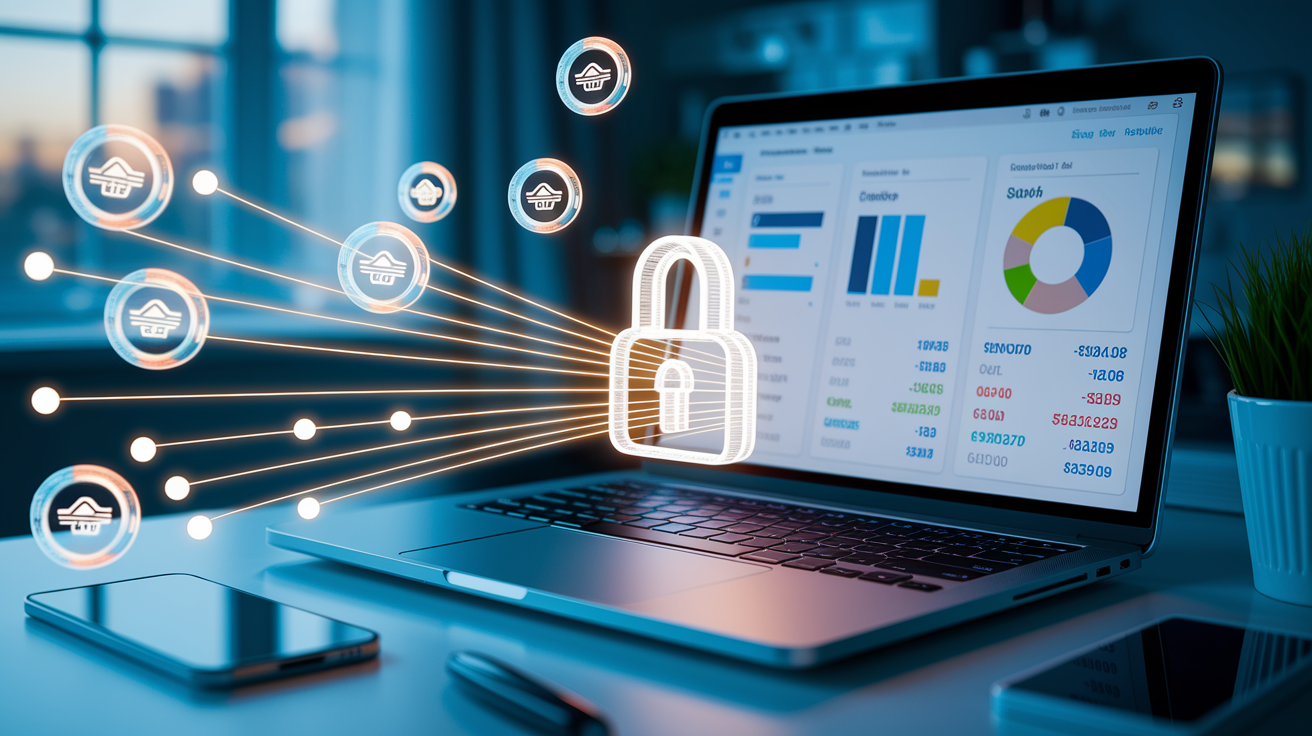
In‑app budgeting tools connect to your bank accounts through secure APIs. These interfaces use aggregators like Plaid or Yodlee to pull transaction data from thousands of financial institutions. We’re talking access to over 10,000 banks and credit unions. When you authorize a connection, the app gets a tokenized credential that grants read‑only access to your account history. Transactions sync automatically, usually within 24 to 72 hours, though some providers offer near real‑time updates. The app grabs amounts, timestamps, merchant names, and transaction types, then normalizes everything so it displays consistently no matter which bank you use.
After importing transactions, the app assigns each one to a spending category. It uses a mix of rule‑based logic and machine learning. Merchant names get matched against databases that map stores to categories like “Groceries” or “Utilities.” When the app hits a new merchant, it uses natural language processing to interpret the transaction string and suggest a category. You can override any assignment. The app remembers your correction to improve future accuracy. Most tools auto‑categorize 70 to 95 percent of transactions. That leaves only a small fraction for manual review. You can also create custom categories and tag transactions by project or person, giving you precise control over how your spending gets organized.
Once categorized, your transactions appear on a dashboard that summarizes total spending, income, and balances. You see month‑to‑date totals, category breakdowns in pie charts or bar graphs, and recent activity listed chronologically. The dashboard refreshes each time new transactions sync. Many apps also show trends over multiple months, highlight unusual spending spikes, and flag recurring charges like subscriptions.
Spending Alerts and Notifications

Budgeting apps watch your account activity and trigger alerts when certain conditions are met. You set threshold amounts for individual categories. Maybe $300 for dining out or $150 for entertainment. When spending in that category crosses the threshold, the app sends a push notification, email, or SMS message to your phone. The alert logic runs every time a new transaction syncs, so warnings arrive within hours of exceeding a limit. You can also receive low‑balance alerts when your checking account falls below a specified dollar amount. Or upcoming bill reminders that notify you a few days before a recurring payment is due.
Apps detect subscription changes, duplicate transactions, and unusual activity. When a subscription price increases or a new recurring charge appears, the app flags it for review. Some tools even suggest subscriptions you might want to cancel based on usage patterns. Alerts are fully customizable. You choose which categories, accounts, and thresholds matter to you, and you select how you want to be notified.
Common alert types include:
- Overspending notifications when a category budget is exceeded
- Low‑balance warnings when checking or savings drops below a set amount
- Bill‑due reminders sent days before scheduled payments
- Subscription‑change alerts when recurring charges increase or new ones appear
Goal‑Setting and Financial Planning Features
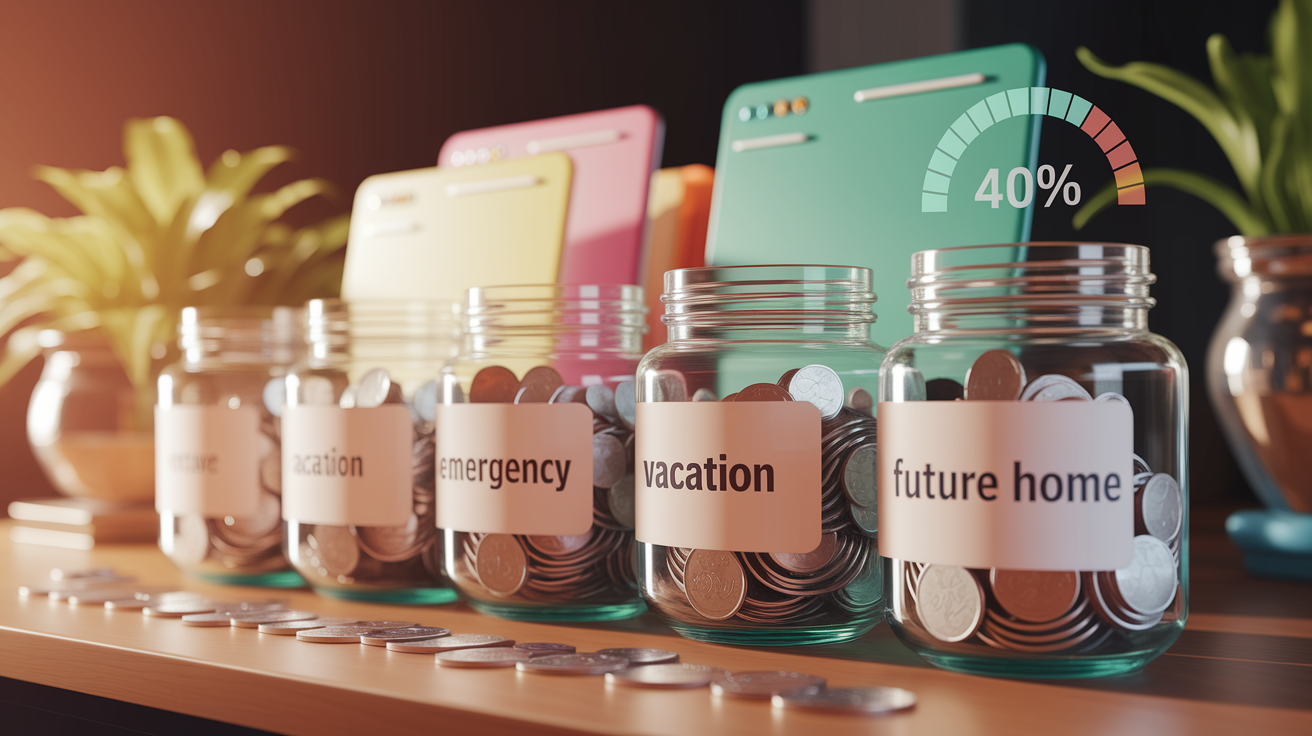
In‑app budgeting tools let you create savings goals with target amounts and deadlines. You might set a goal for a $6,000 emergency fund due in one year. Or a $2,000 vacation fund due in six months. The app calculates how much you need to save each month to reach the target on time. It tracks your progress with a visual meter showing dollars saved and percentage complete. When you allocate money to a goal, the app subtracts that amount from your available spending balance. Makes it easier to see how much remains for everyday expenses.
Some apps offer envelope‑style budgeting, where you assign every dollar of income to a specific category or goal before the month begins. Others use zero‑based budgeting, which asks you to allocate your entire paycheck to categories, debt, or savings. Leaving zero unassigned. Automated savings suggestions appear when the app detects surplus cash or lower‑than‑average spending in a given month. If you consistently underspend in a category, the tool may recommend reallocating that budget to a savings goal or debt payoff. Progress charts update in real time as transactions sync.
Banking API Integrations and Data Security
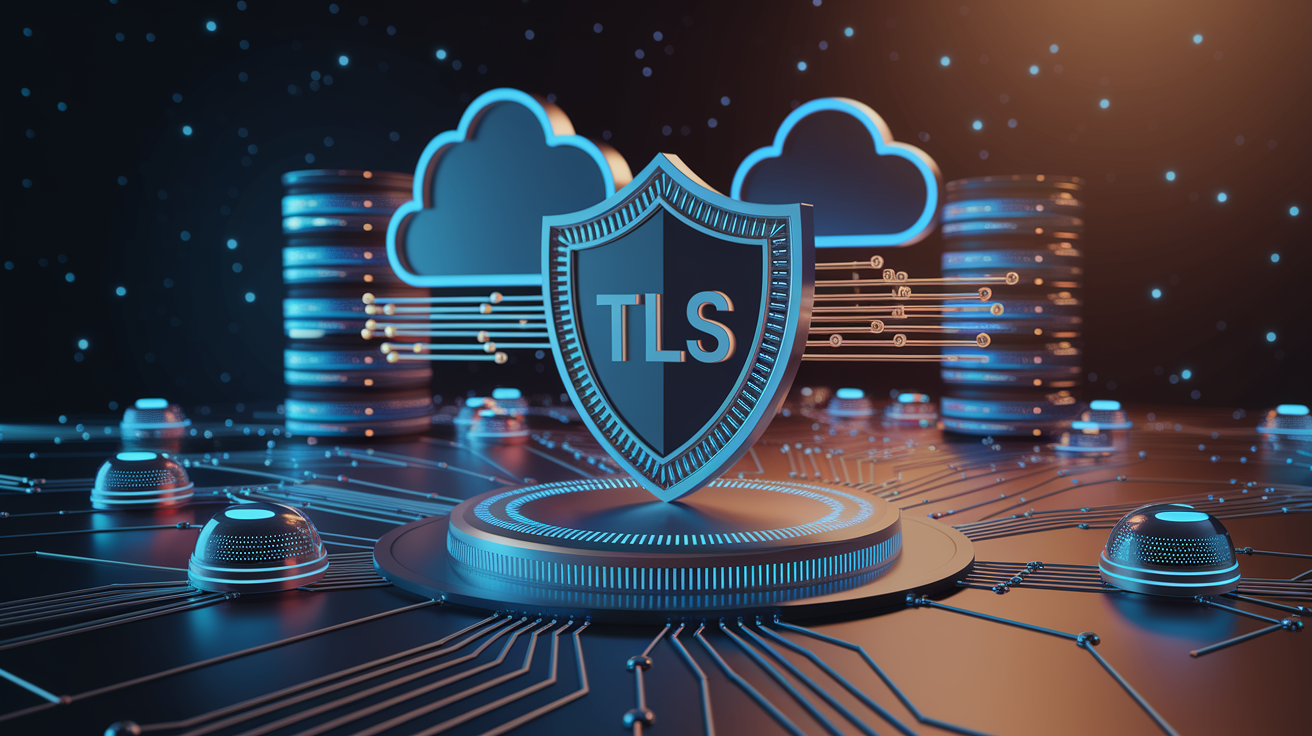
In‑app budgeting tools connect to your financial institutions using API aggregators that handle the technical handshake between the app and your bank. When you link an account, you authenticate through your bank’s login page or OAuth portal, which generates a secure token. The token grants the budgeting app read‑only access to transaction data, balances, and account details. The app never sees your actual login credentials. It can’t move money or make changes to your account. This tokenized connection reduces risk because even if the app’s systems were compromised, attackers wouldn’t have your username and password.
Data transmitted between your bank, the aggregator, and the budgeting app gets encrypted using TLS. Same protocol that protects online banking sessions. Once transactions arrive at the app’s servers, they’re stored using AES‑256 encryption, a standard that meets most financial industry compliance requirements. Many providers also maintain SOC 2 or ISO 27001 certifications. These are third‑party audits that verify security practices. You should check whether your chosen app publishes an annual security attestation or compliance report.
Multi‑factor authentication adds another layer of protection. When you log in to the budgeting app, you may be asked to confirm your identity with a one‑time code sent to your phone or email. Some apps also require periodic reauthorization of bank connections, prompting you to re‑enter credentials every 90 or 180 days. Read‑only access means the app can see your spending history but can’t initiate transfers, pay bills, or change account settings. If you want to revoke access, you can disconnect the account in the app’s settings or through your bank’s third‑party permissions page. The token becomes invalid immediately.
AI‑Driven Insights and Automated Recommendations
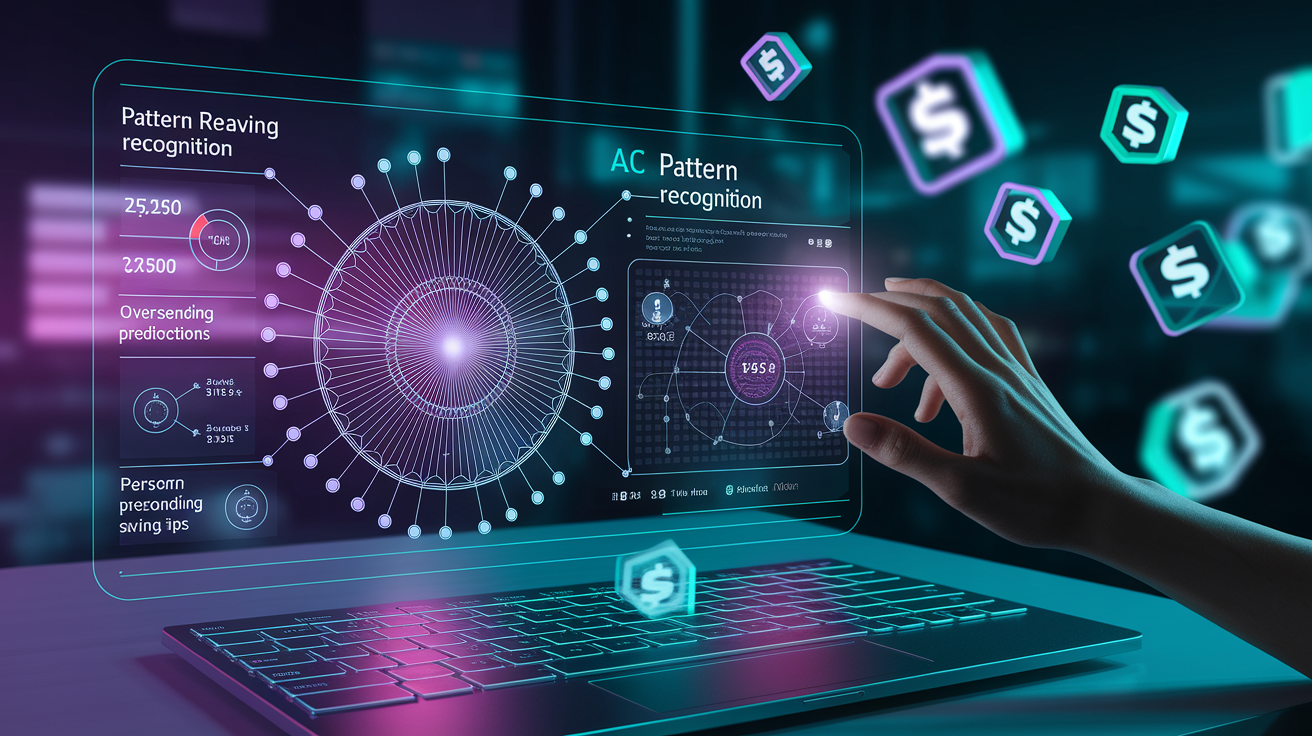
Machine learning algorithms analyze your transaction history to identify patterns and generate personalized insights. The app compares your current month’s spending to previous months, detecting categories where you consistently overspend or underspend. It then surfaces recommendations like “You spent 20 percent more on groceries this month” or “Your utility bill is 15 percent lower than average.” These insights help you spot trends before they become budget problems.
AI also powers anomaly detection. If you typically spend $50 per week on gas but suddenly charge $200, the app highlights the outlier and asks whether it’s a one‑time event or a new pattern. Subscription‑detection algorithms scan recurring charges and compile a list of all memberships, showing total monthly cost and suggesting cancellations for services you rarely use. Some tools forecast your future cash flow by projecting income and expenses over the next few weeks or months, warning you if a low‑balance period is approaching.
Three common AI‑powered insight types:
- Pattern recognition that highlights spending trends across categories and time periods
- Overspending predictions that warn when your pace of spending will exceed the monthly budget
- Personalized saving tips generated by comparing your habits to users with similar income and spending profiles
Manual Tracking vs. Automated Tracking
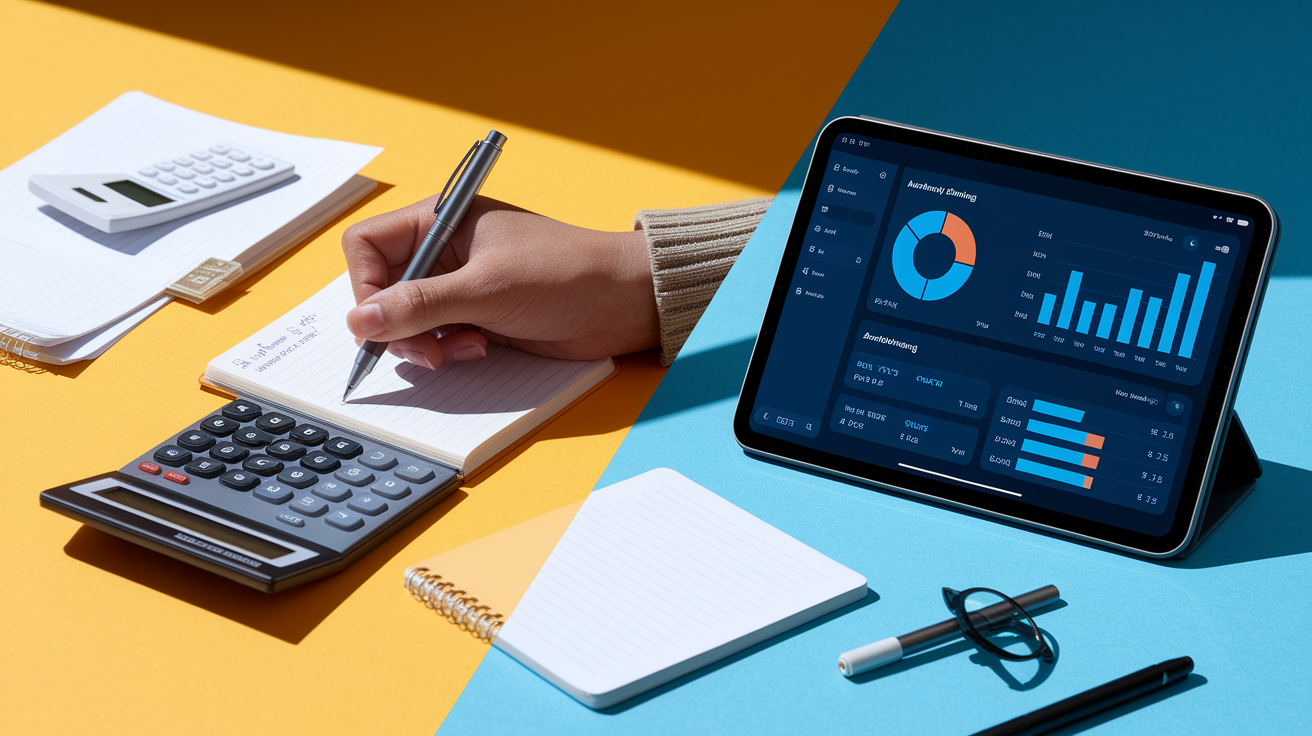
Manual budgeting requires you to enter every transaction by hand or import CSV files from your bank. You maintain full control over categorization. You never share account credentials with a third party. Spreadsheet templates in Google Sheets or Excel let you build custom formulas, pivot tables, and charts tailored to your exact needs. Manual tracking works well if you value privacy, have a small number of accounts, or prefer a hands‑on approach that forces you to review every dollar. The downside is time. Logging 50 transactions per week takes significant effort, and missing even a few entries skews your reports.
Automated budgeting tools sync transactions daily or in real time, eliminating manual data entry. They auto‑categorize most purchases, send alerts when you overspend, and generate reports without additional work. Automation scales easily across multiple accounts and credit cards. Makes it practical for users with complex finances. The tradeoff is dependency on aggregator uptime and the need to verify that auto‑categorization is accurate. You also grant read‑only access to a third party, which some users see as a privacy concession. A hybrid approach, automated syncing combined with periodic manual review, balances convenience and accuracy. Lets you catch miscategorized transactions while still benefiting from real‑time tracking.
| Method | Strengths | Limitations |
|---|---|---|
| Manual | Full control, no third‑party access, customizable spreadsheets, zero recurring cost | Time‑consuming, prone to missed entries, no real‑time alerts, harder to scale across many accounts |
| Automated | Real‑time syncing, auto‑categorization, instant alerts, scales across multiple accounts, generates forecasts | Requires read‑only account access, depends on aggregator uptime, categorization errors need review, subscription cost |
Examples of Popular Budgeting Apps and Their Key Features
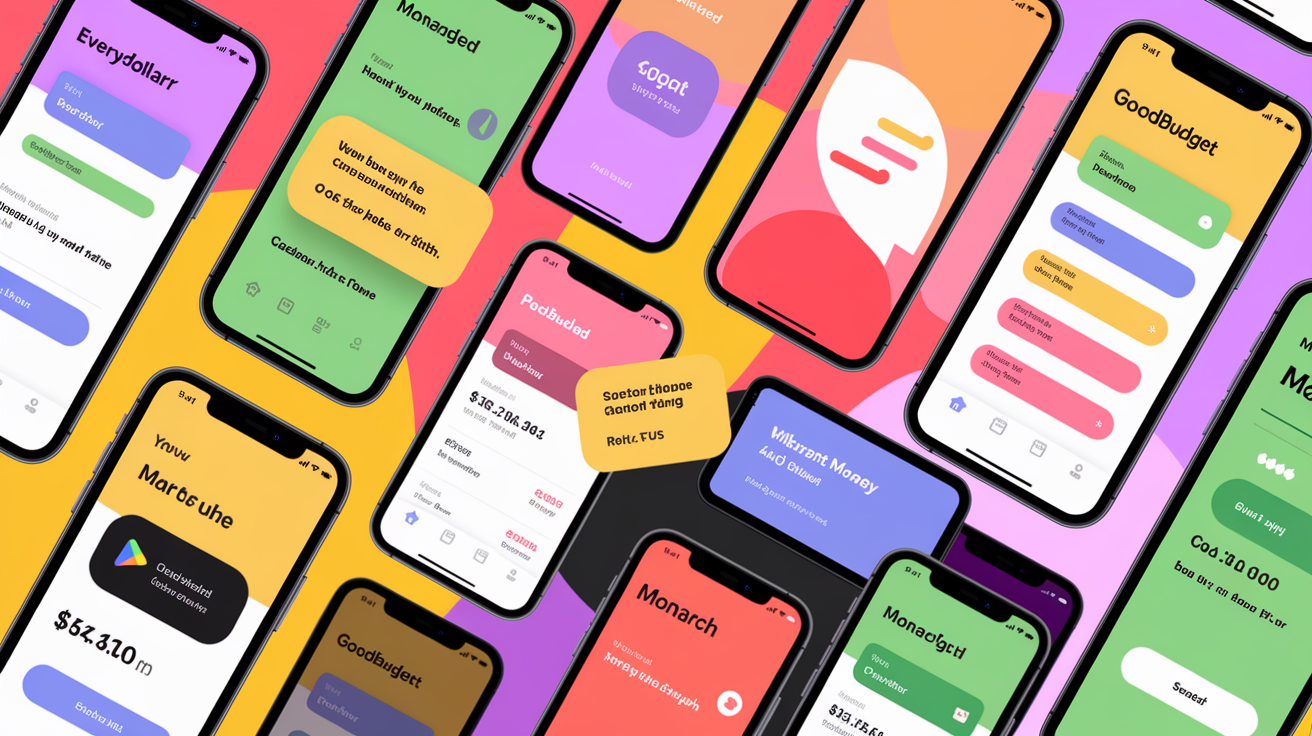
YNAB focuses on zero‑based budgeting. It asks you to assign every dollar of income to a category, debt payment, or savings goal before the month begins. It connects to thousands of banks, syncs transactions automatically, and lets you split a single purchase across multiple categories. The app includes detailed spending reports, net‑worth tracking, and shared access for up to six household members. YNAB also offers a free one‑year subscription for enrolled college students and supports smartphones, tablets, Apple Watch, and Amazon Alexa integrations.
EveryDollar provides a free tier that requires manual transaction entry and a premium tier that adds bank syncing, automatic categorization, and custom reports. The zero‑based framework guides you through assigning your paycheck to categories. The app flags any unallocated dollars. Goodbudget uses the envelope method, letting you create digital envelopes for categories like groceries, gas, and entertainment. When you overspend in an envelope, it turns red, signaling that you need to adjust spending or move money from another category. PocketGuard calculates “In My Pocket” spending by subtracting bills, goals, and necessities from your income. Shows how much is safe to spend each day. Monarch Money adds AI‑driven insights, investment tracking, and family‑sharing features. Quicken Simplifi aggregates bank, credit, and investment accounts into a single dashboard with projected cash flows and real‑time alerts.
Popular budgeting apps typically share these features:
- Bank account syncing through aggregators or direct API connections that import transactions automatically
- Customizable category rules that let you define how transactions are classified and create tags for projects or people
- Goal dashboards with progress meters, target deadlines, and automated savings recommendations
- Push, SMS, or email alerts triggered by spending thresholds, low balances, or upcoming bill due dates
- Reports and visualizations including pie charts for category share, trend lines for month‑over‑month changes, and cashflow forecasts
Final Words
You get instant transaction syncing, automatic categorization you can tweak, clear dashboards, and alerts that stop overspending. The post covered secure bank APIs, goal trackers, AI insights, and the manual vs automated tradeoffs.
These tools turn raw transactions into nudges: bill reminders, category limits, progress meters, and personalized tips. Pick the features that match your accounts and habits.
If you still wonder how do in app budgeting tools work, they connect read-only account data, auto-sort transactions, and surface simple actions: alerts, goal nudges, and clear spending summaries. Try one free or low-cost app for a month. Small changes add up.
FAQ
Q: What is the 70-10-10-10 budget rule?
A: The 70-10-10-10 budget rule splits income: 70% for essentials (rent, food, bills), and three 10% buckets for savings, debt or investments, and wants or giving, keeping things simple and flexible.
Q: How do budgeting apps work?
A: Budgeting apps work by securely linking to your bank, syncing transactions in real time, auto-categorizing expenses with editable rules, and showing dashboards, alerts, and goal trackers you can adjust.
Q: What is the 50/30/30 budget rule?
A: The 50/30/30 budget rule is likely a mistaken ratio; the common guideline is 50/30/20: 50% needs, 30% wants, and 20% for savings or debt repayment.
Q: What is the best budgeting tool app?
A: The best budgeting tool app depends on your needs: choose YNAB for hands-on envelope-style control, Mint or Simplifi for automatic syncing and overviews, and EveryDollar for simple zero-based budgets.
